Considering using Elementor on your site? In our hands-on Elementor review, we’ll give you a detailed look at this popular WordPress page builder and whether it’s right for you.
Since its launch in 2016, Elementor has quickly gone on to become one of the premier WordPress page builder plugins, active on over 2 million WordPress sites according to WordPress.org.
Hands-on Elementor Review
Ok, enough with the jibber-jabber. Let’s actually dig into the Elementor page builder. When you install and activate it, you’ll get this handy new button on all of your posts and pages:
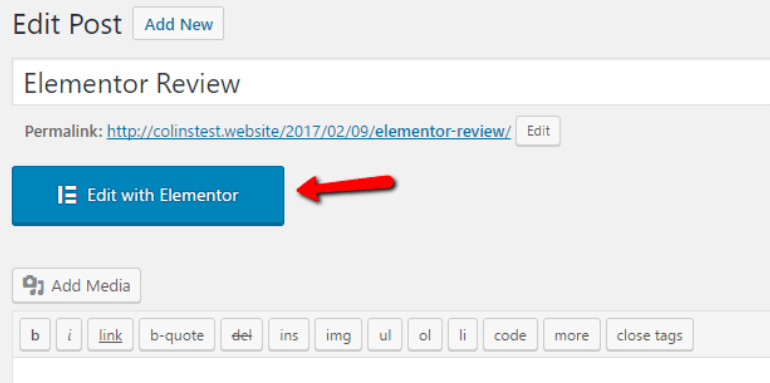
To start editing with Elementor, all you need to do is give it a click.
Then, you’ll find yourself in the Elementor interface:
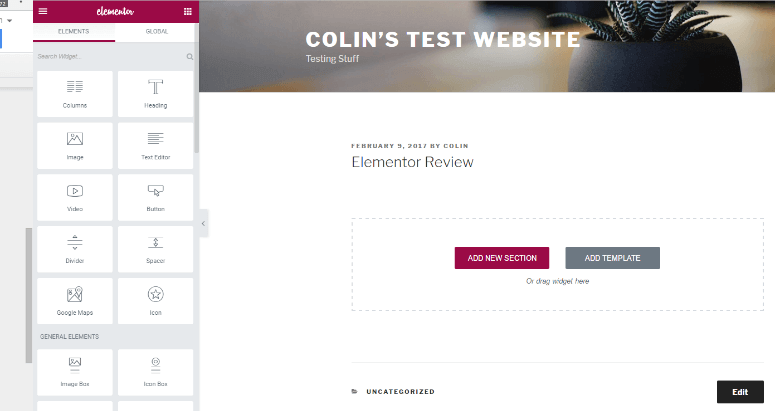
As I said, Elementor is a front-end visual builder. So while you’re building your page, you’ll see the final product exactly like your readers will.
To get started, you can either build your page from scratch or use a template.
Building a Page from Scratch with Elementor
Elementor’s interface is a breeze to use. Not only is it smooth and glitch-free, it also lets you go in-depth into how you position your elements.
To get started, you first need to add a Section. Think of a section as a container, while Elements are the actual content that fits inside that container. You can set up different default column widths, though you can always resize these later:
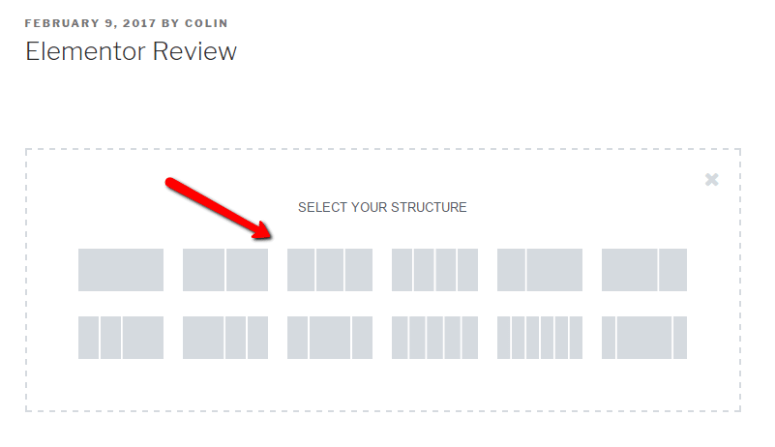
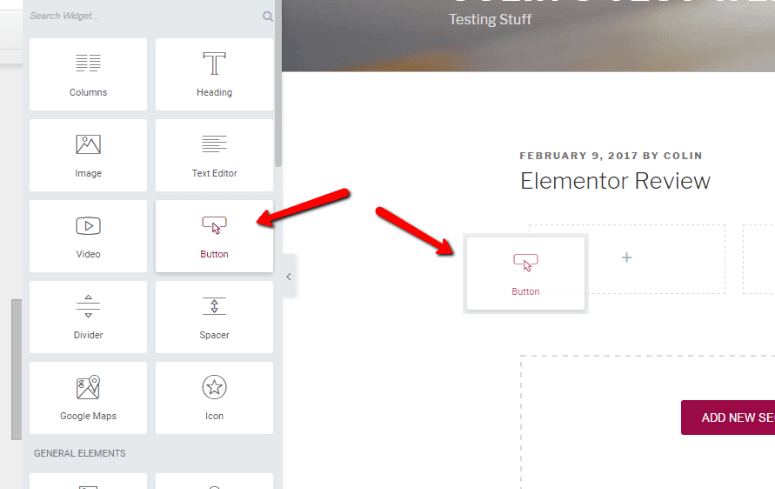
Ok, so you can see I went with a nice three-column layout. Now, to add Elements to that layout, you just need to drag them over from the left-hand side. So to add, say, a button, you just drag it over:
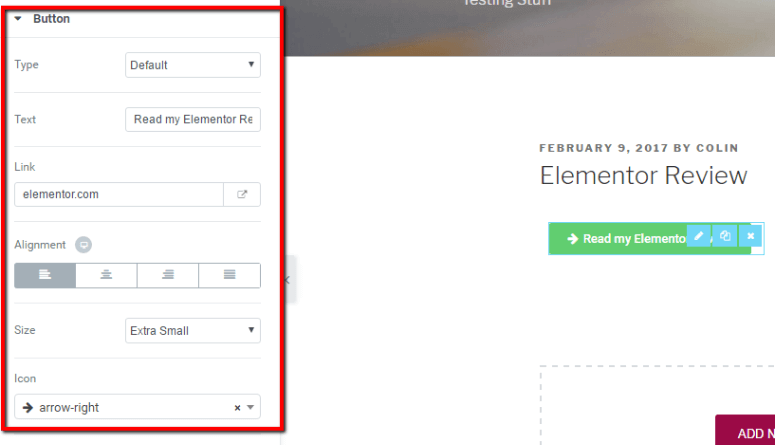
Then, you can configure the basic details for the button like its text, link, alignment, and size in the Content tab:
To edit text, you can now also just click and type on the page. When Elementor first launched, it lacked this feature. But now, editing text is much more convenient because all you do is click and type like you’re working in a Word document.
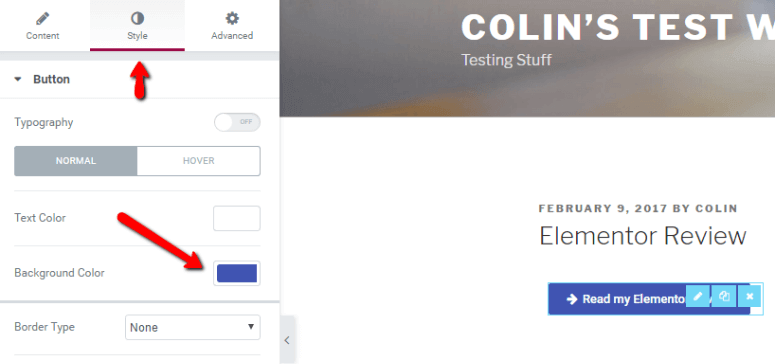
If you hop over to the Style tab, you can configure colors and borders for your button:
And finally, the Advanced tab lets you go in-depth with your button’s positioning. You can add margins, padding, or custom CSS. Then you can even add animation and some other cool settings!
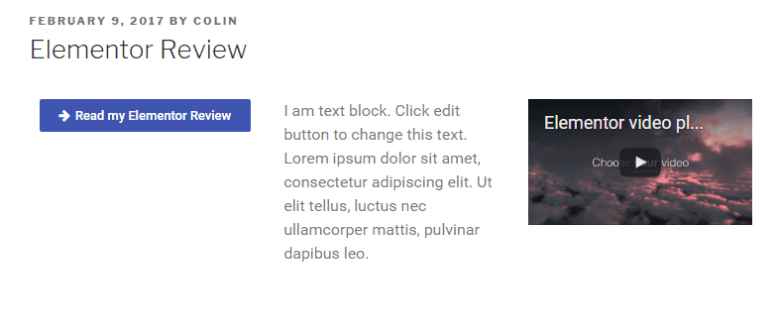
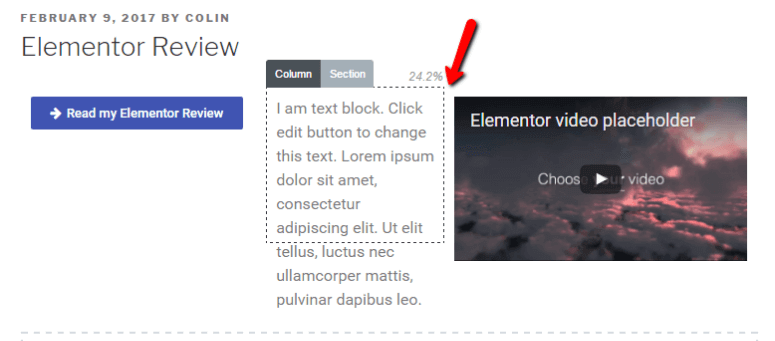
But let’s say you don’t like how small the video is – you want its column to be wider. To do that, all you need to do is hover in the middle and drag its column width over:
Saving Created Layouts as Templates
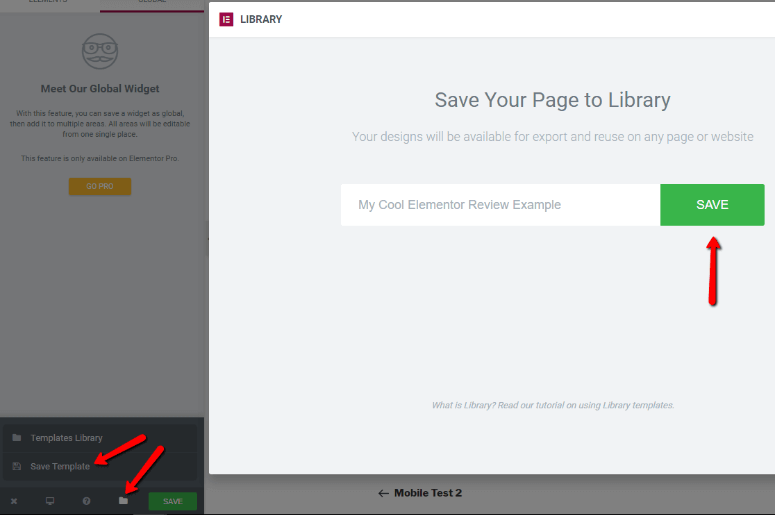
Let’s say you create a layout you’re absolutely in love with. You love it so much that you want to use it on multiple pages. Do you have to re-create it from scratch each time you want to use it? Nope!
You can save any layout as a template:
Which brings me to my next point…
Using Premade Templates to Save Time
Elementor also includes their own premade templates, so you don’t always need to start from a blank canvas. If you opt to go with one of the premade templates (or one of your saved templates), it just takes a few clicks to get started.
Elementor now includes two types of premade templates:
Pages – these are whole page templates.
Blocks – these are blocks for specific sections of a page. You can assemble them like Legos to create a complete page, or just use a block here and there.
Then, you can edit and manipulate all of the content just like you could if you’d built the design yourself:
Which brings me to my next point…
Using Premade Templates to Save Time
Elementor also includes their own premade templates, so you don’t always need to start from a blank canvas. If you opt to go with one of the premade templates (or one of your saved templates), it just takes a few clicks to get started.
Elementor now includes two types of premade templates:
Pages – these are whole page templates. Blocks – these are blocks for specific sections of a page. You can assemble them like Legos to create a complete page, or just use a block here and there.
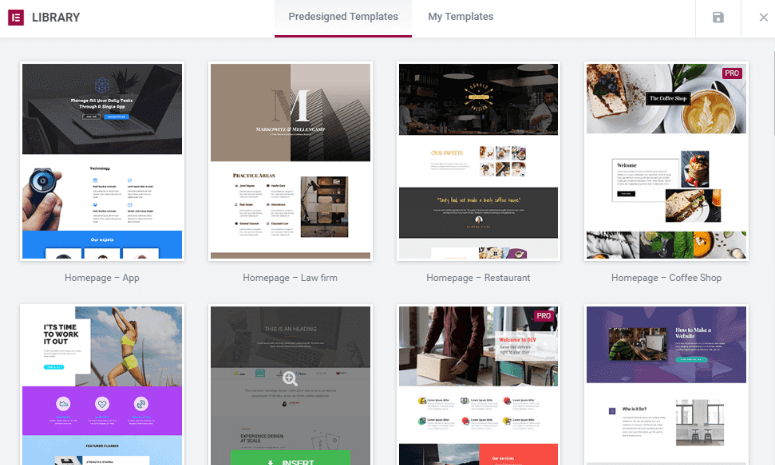
Then, you can edit and manipulate all of the content just like you could if you’d built the design yourself:
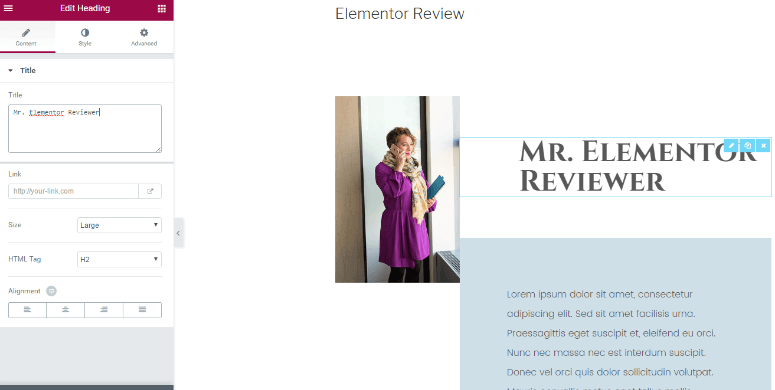
The templates are a great option because they eliminate the need to build a page’s layout. Instead, you’re free to just focus on content.
Previewing How Your Designs Look on Different Devices
Ok, last thing I’m going to show you for now. Because we live in an increasingly mobile-centric world, it’s important that your designs look great on both desktop AND mobile. Makes sense, right?
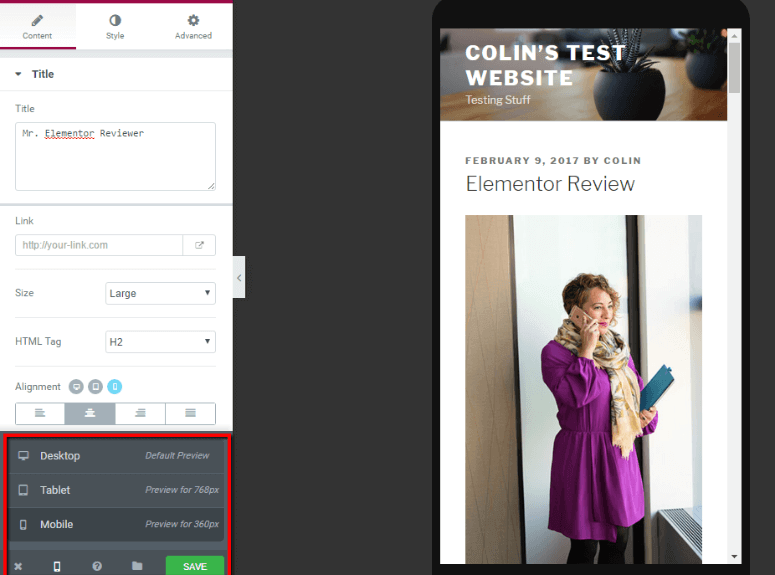
To help you make sure your designs are responsive, Elementor lets you easily preview how your pages look on:
Desktop, Tablet, Mobile
You just need to click a button in the bottom-left corner and Elementor will show you a live preview: